
JavaScript Arrays Explained: Complete Guide for Beginners in 2026
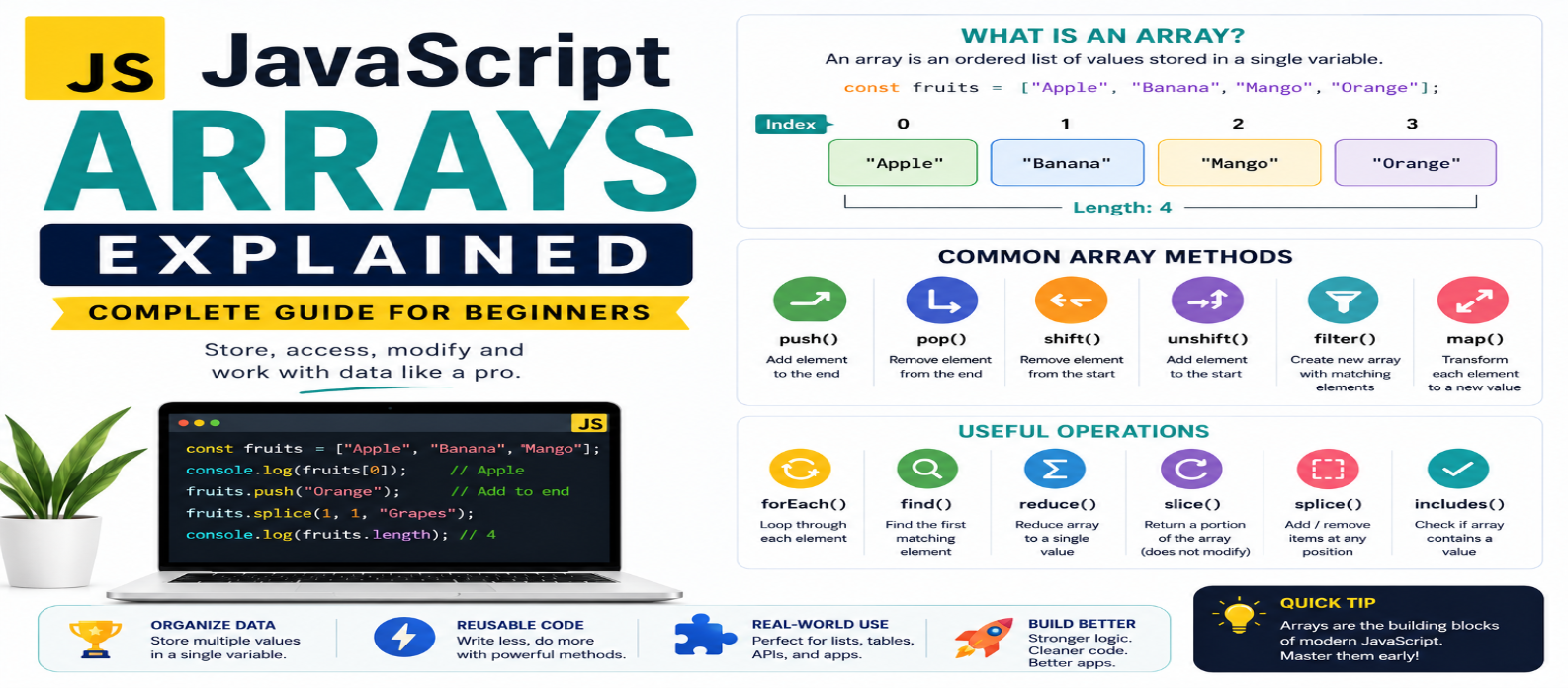
"Learn JavaScript arrays from scratch with practical examples covering indexes, push, pop, map, filter, find, reduce, sorting, slice, splice, destructuring, spread syntax, and common array mistakes."
JavaScript Arrays Explained: Complete Guide for Beginners in 2026
Most JavaScript applications need to work with collections of data: products in a shopping cart, usernames, search results, scores, messages, or tasks in a to-do list.
Storing every value in a separate variable quickly becomes impractical. JavaScript arrays solve this by letting you keep multiple values in a single ordered collection.
Once you understand arrays and their most useful methods, working with real-world JavaScript data becomes much easier.
What Is a JavaScript Array?
An array stores an ordered collection of values.
const fruits = [
  "Apple",
  "Banana",
  "Mango"
];
Instead of creating:
const fruit1 = "Apple";
const fruit2 = "Banana";
const fruit3 = "Mango";
you have one collection called fruits.
Arrays can contain strings, numbers, objects, and other JavaScript values.
const scores = [85, 92, 76, 98];A common real-world pattern is an array of objects:
const products = [
  { name: "Keyboard", price: 2500 },
  { name: "Mouse", price: 1200 }
];
Accessing Array Elements
Arrays use zero-based indexing.
For:
const colors = [
  "Red",
  "Green",
  "Blue"
];
the indexes are:
Red   → 0
Green → 1
Blue  → 2
Access an item using brackets:
console.log(colors[0]);Output:
RedTo access the final element:
colors[colors.length - 1];Modern JavaScript also provides:
colors.at(-1);which conveniently retrieves the last item.
Understanding length
The length property tells you how many elements an array currently contains.
const languages = [
  "HTML",
  "CSS",
  "JavaScript"
];

console.log(languages.length);
Result:
3Remember:
Length = 3
but the final index is:
2
because indexing starts at zero.
Adding Items to an Array
push()
Adds one or more elements to the end:
const tasks = ["Study"];

tasks.push("Practice");

console.log(tasks);
Result:
["Study", "Practice"]unshift()
Adds elements to the beginning:
tasks.unshift("Plan");Now:
["Plan", "Study", "Practice"]Both methods modify the original array.
Removing Array Items
pop()
Removes and returns the final element:
const lastTask = tasks.pop();shift()
Removes and returns the first element:
const firstTask = tasks.shift();A simple way to remember them:
push()    → Add to end
pop()     → Remove from end
unshift() → Add to beginning
shift()   → Remove from beginning
Changing an Existing Value
You can replace an item using its index:
const cities = [
  "Delhi",
  "Mumbai",
  "Chennai"
];

cities[1] = "Bengaluru";
The array becomes:
["Delhi", "Bengaluru", "Chennai"]Even though cities was declared with const, its contents can still be modified.
const prevents reassignment of the variable itself; it doesn't make the array immutable.
Looping Through Arrays
A straightforward option is for...of:
const tools = [
  "VS Code",
  "Git",
  "Chrome"
];

for (const tool of tools) {
  console.log(tool);
}
When you need both the index and value:
for (const [index, tool] of tools.entries()) {
  console.log(index, tool);
}
Arrays also provide methods designed for common processing tasks.
forEach(): Perform an Action
forEach() executes a callback for each element.
const names = ["Asha", "Ravi", "Maya"];

names.forEach(name => {
  console.log(`Hello, ${name}`);
});
Use forEach() when you primarily want to perform an action for each item.
If you want to create a new transformed array, map() is usually a clearer choice.
map(): Transform Every Item
Suppose prices need to be doubled:
const prices = [100, 200, 300];

const doubled = prices.map(price => {
  return price * 2;
});
Result:
[200, 400, 600]The original prices array remains unchanged by map().
Think:
Existing Array → Transform Each Item → New Array
filter(): Keep Matching Items
Use filter() when you need only elements satisfying a condition.
const prices = [500, 1200, 300, 2000];

const expensive = prices.filter(price => {
  return price >= 1000;
});
Result:
[1200, 2000]filter() is extremely useful for search interfaces, product filters, permissions, and data processing.
find(): Find One Matching Item
When you need the first matching element:
const users = [
  { id: 1, name: "Ravi" },
  { id: 2, name: "Asha" }
];

const user = users.find(user => {
  return user.id === 2;
});
The result is the matching object.
If nothing matches, find() returns undefined.
some() and every()
some()
Checks whether at least one element passes a test.
const ages = [15, 17, 21];

const hasAdult =
  ages.some(age => age >= 18);
Result:
trueevery()
Checks whether all elements pass:
const scores = [70, 85, 92];

const allPassed =
  scores.every(score => score >= 50);
Result:
trueThese methods are useful when your question naturally sounds like "Does any item...?" or "Do all items...?"
includes(): Check Whether a Value Exists
For simple values:
const roles = [
  "admin",
  "editor",
  "viewer"
];

roles.includes("editor");
Result:
trueFor searching objects by a property, methods such as find() or some() are generally more appropriate.
slice(): Copy Part of an Array
slice() returns part of an array without changing the original.
const numbers = [10, 20, 30, 40, 50];

const selected =
  numbers.slice(1, 4);
Result:
[20, 30, 40]The ending index isn't included.
slice() can also make a shallow copy:
const copy = numbers.slice();splice(): Add or Remove In Place
splice() modifies the original array.
const fruits = [
  "Apple",
  "Banana",
  "Mango"
];

fruits.splice(1, 1);
The array becomes:
["Apple", "Mango"]Because slice() and splice() have similar names, beginners often confuse them.
Remember:
slice() → returns a portion without changing the original
splice() → can modify the original array
reduce(): Combine Values
reduce() processes an array into a single accumulated result.
For example:
const cart = [500, 750, 250];

const total = cart.reduce(
  (sum, price) => sum + price,
  0
);
Result:
1500Here:
0 is the initial accumulator value.
Each price is added to the running total.
reduce() is powerful, but don't use it merely to make code shorter. Sometimes map(), filter(), or a simple loop communicates the intention more clearly.
Sorting Arrays Correctly
A common surprise occurs with numbers:
const numbers = [100, 20, 3];
numbers.sort();
By default, sort() doesn't automatically perform numeric ascending comparison.
For numbers, provide a comparison function:
numbers.sort((a, b) => a - b);Descending:
numbers.sort((a, b) => b - a);Also remember that sort() modifies the array.
If you need to preserve the original, create a copy first:
const sorted = [...numbers].sort(
  (a, b) => a - b
);
Array Destructuring
Destructuring provides a convenient way to extract values.
const coordinates = [18.5, 73.8];

const [latitude, longitude] =
  coordinates;
You can also skip values:
const colors = [
  "Red",
  "Green",
  "Blue"
];

const [first, , third] = colors;
This makes certain array operations more readable.
Spread Syntax With Arrays
The spread syntax ... can copy or combine arrays.
const frontend = ["HTML", "CSS"];
const scripting = ["JavaScript"];

const skills = [
  ...frontend,
  ...scripting
];
Result:
["HTML", "CSS", "JavaScript"]For a shallow copy:
const copiedSkills = [...skills];Be aware that this doesn't deeply clone nested objects.
Practical Example: Shopping Cart
Consider:
const cart = [
  { name: "Keyboard", price: 2500 },
  { name: "Mouse", price: 1200 },
  { name: "Monitor", price: 15000 }
];
Find affordable products:
const affordable = cart.filter(
  item => item.price < 5000
);
Get product names:
const names = cart.map(
  item => item.name
);
Calculate the total:
const total = cart.reduce(
  (sum, item) => sum + item.price,
  0
);
This demonstrates why array methods are so important: the method often describes exactly what you're trying to accomplish.
Common Array Mistakes
Forgetting Zero-Based Indexing
The first element is [0], not [1].
Confusing slice() and splice()
One preserves the original; the other can modify it.
Forgetting That sort() Mutates
Copy the array first when the original order must remain unchanged.
Using map() Without Needing Its Result
If you're only performing an action, another approach such as forEach() or a loop may communicate your intention better.
Chaining Methods Without Readability
This is powerful:
products
  .filter(...)
  .map(...)
  .sort(...);
But don't create complicated chains that are difficult to understand simply because JavaScript allows them.
Array Learning Roadmap
For beginners, learn in this order:
Create Arrays → Indexes → length → push() / pop() → Loops → forEach() → map() → filter() → find() → some() / every() → slice() / splice() → reduce() → Sorting → Destructuring
Practice these methods with real data instead of memorizing every array method at once.
Conclusion
JavaScript arrays provide a practical way to store and work with collections of information.
Start with indexing and basic modification, then become comfortable with the methods you'll use most often:
map() → Transform
filter() → Select
find() → Locate
some() / every() → Test
reduce() → Combine
The goal isn't to memorize dozens of methods. Learn to recognize the operation your data needs, then choose the clearest array tool for that job.
Once arrays become comfortable, handling products, users, API responses, search results, shopping carts, and application state becomes significantly easier.
Get a Free Access To 200+ Free Tools:
|
Home Page |
|
|
Calculator Tools |
|
|
Text & Converter Tools |
|
|
PDF & Image Tools |
|
|
Games & Developer Tools |
|
|
Resume Builder |