
Interaction to Next Paint Explained: Complete INP Guide for 2026
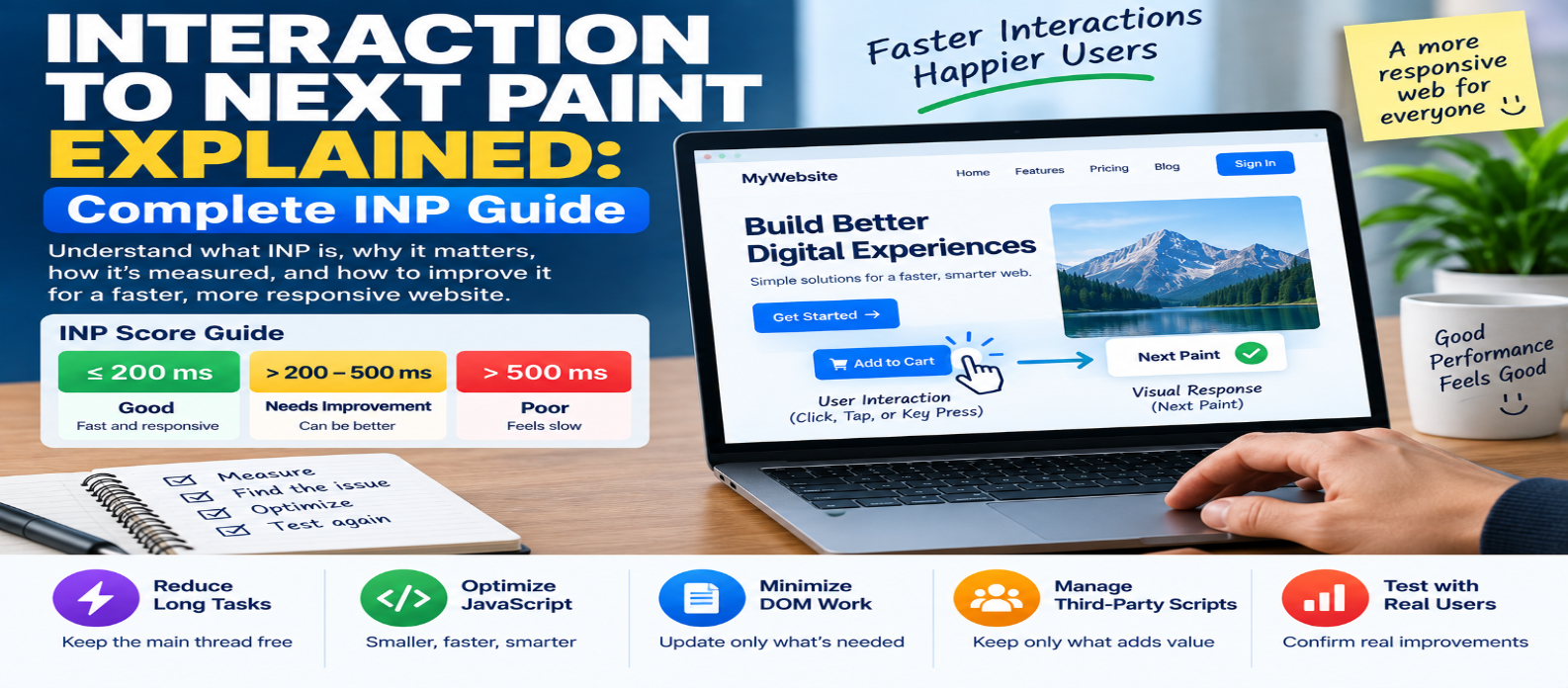
"Learn what Interaction to Next Paint (INP) is, what a good INP score means, how input delay, processing time and presentation delay affect responsiveness, and how to improve INP by optimizing JavaScript, long tasks, DOM updates and third-party scripts."
Interaction to Next Paint Explained: Complete INP Guide
A website can load quickly and still feel frustrating.
You tap a menu button, click "Add to Cart," or open a dropdown—and nothing seems to happen for a moment. That delay is exactly the type of user experience that Interaction to Next Paint (INP) is designed to measure.
INP is one of Google's Core Web Vitals, alongside Largest Contentful Paint (LCP) and Cumulative Layout Shift (CLS).
While LCP focuses on loading performance, INP focuses on responsiveness.
What Is Interaction to Next Paint?
Interaction to Next Paint (INP) measures how quickly a page visually responds to user interactions during a visit.
It observes interactions such as:
- Mouse clicks
- Touchscreen taps
- Keyboard input
Imagine clicking a button:
USER CLICKS
     ↓
Browser waits
     ↓
Event code runs
     ↓
Page updates
     ↓
NEXT FRAME PAINTED
INP measures the latency between the interaction and the next visual update associated with it.
A low INP means the interface generally feels responsive.
What Is a Good INP Score?
The commonly used Core Web Vitals thresholds are:
Good               ≤ 200 ms
Needs Improvement  > 200–500 ms
Poor               > 500 ms
For real-user assessment, the target is generally to achieve an INP of 200 milliseconds or less at the 75th percentile of page visits.
That means most visitors should receive a responsive experience—not just users with powerful computers.
What Types of Interactions Does INP Measure?
INP focuses primarily on discrete interactions initiated through:
Mouse → Clicks
Touchscreen → Taps
Keyboard → Key presses
It doesn't simply measure every mouse movement or scrolling action.
For example, INP can reveal delays when someone:
Clicks menu
     ↓
Opens modal
     ↓
Adds product
     ↓
Types in search
     ↓
Selects option
If these interactions consistently take too long to produce visual feedback, the page can feel sluggish even when it loaded quickly.
How Is INP Different From LCP?
LCP and INP measure different parts of the experience.
LCP
Asks:
"How quickly did the main content appear?"
INP
Asks:
"How quickly does the page respond when I interact with it?"
A page might have:
LCP: 1.8 seconds → Good
INP: 650 ms      → Poor
The content appears quickly, but interactions feel slow.
That's why performance optimization shouldn't stop after improving page load speed.
INP vs First Input Delay
Before INP became a Core Web Vital, responsiveness was commonly represented by First Input Delay (FID).
FID focused on the delay before the browser could begin processing the user's first interaction.
INP provides a broader view because it considers interactions throughout the page visit and includes more of the interaction-to-rendering process.
So INP is better suited to detecting responsiveness problems that happen after the first interaction.
The Three Main Parts of Interaction Latency
A useful way to understand INP is to divide an interaction into three stages:
USER INTERACTION
       ↓
INPUT DELAY
       ↓
PROCESSING DURATION
       ↓
PRESENTATION DELAY
       ↓
NEXT PAINT
Each stage can become a bottleneck.
1. Input Delay
Input delay is the time between the user's interaction and when the browser can begin processing its event handlers.
Why would the browser wait?
Because the main thread may already be busy.
For example:
Large JavaScript Task
████████████████████
          ↑
      User Clicks
          ↓
Browser must wait
Until the existing task finishes, the interaction may not be processed.
Large JavaScript tasks are therefore a major source of poor responsiveness.
2. Processing Duration
Once the browser begins handling the interaction, your event-handling code needs to execute.
Consider:
button.addEventListener("click", () => {
  updateCart();
  calculateTotals();
  renderRecommendations();
  updateInterface();
});
If these operations perform too much synchronous work, the user waits longer for visual feedback.
Possible improvements include:
- Reducing unnecessary calculations
- Updating only necessary elements
- Avoiding repeated expensive operations
- Breaking large tasks into smaller work
- Deferring nonessential work
An interaction handler should ideally do only what is necessary for the immediate response.
3. Presentation Delay
Even after JavaScript finishes, the browser may still need to:
Calculate Styles
      ↓
Perform Layout
      ↓
Paint
      ↓
Composite
Large or complex DOM updates can make this stage expensive.
For example, changing thousands of elements after one click may require substantial rendering work.
The fastest JavaScript handler won't guarantee good INP if the resulting page update is extremely expensive to render.
What Is a Long Task?
Browser main-thread work that runs continuously for a significant amount of time can block interactions.
Imagine:
Task A      15ms
Task B      22ms
Task C      280ms  ← Problem
Task D      18ms
If the user clicks during Task C, the browser may be unable to respond immediately.
One strategy is to split large work:
Instead of:

████████████████████

Use:

████  ████  ████  ████
Giving the browser opportunities to handle higher-priority work between chunks can improve responsiveness.
How JavaScript Affects INP
JavaScript is often one of the biggest contributors to poor INP.
Common causes include:
- Large application bundles
- Expensive event handlers
- Client-side rendering
- Excessive calculations
- Repeated DOM updates
- Third-party scripts
- Hydration work
- Too much code executing on page load
The solution isn't necessarily to remove JavaScript.
The goal is to reduce unnecessary main-thread work and prioritize interactions.
Reduce Unnecessary JavaScript
Start by auditing what you're shipping.
Ask:
Is this code used?
Does it need to run now?
Can it load later?
Can the work happen only when needed?
Useful techniques include:
- Code splitting
- Lazy loading
- Removing unused dependencies
- Deferring noncritical scripts
- Loading features on demand
Less unnecessary JavaScript means less work competing with user interactions.
Keep Event Handlers Small
Suppose a button opens a panel.
Avoid doing every possible secondary task before showing it.
Instead of:
CLICK
 ↓
Analytics
 ↓
Complex calculation
 ↓
Fetch unrelated data
 ↓
Update recommendations
 ↓
OPEN PANEL
prefer:
CLICK
 ↓
OPEN PANEL
 ↓
Perform lower-priority work later
Users should receive immediate visual feedback whenever possible.
Avoid Excessive DOM Updates
This pattern can become expensive:
items.forEach(item => {
  // repeatedly modify many elements
});
Large numbers of DOM changes may trigger significant style, layout, and rendering work.
Where appropriate:
- Batch updates
- Modify only affected elements
- Avoid unnecessarily rebuilding large UI sections
- Keep DOM structures manageable
The exact optimization depends on your framework and application architecture.
Watch Third-Party Scripts
Your own JavaScript isn't the only code using the main thread.
Third-party resources can include:
- Analytics
- Advertising
- Chat widgets
- Social embeds
- A/B testing
- Tracking scripts
Audit each one.
A script that provides little business value shouldn't make every interaction slower.
Delay nonessential third-party features when appropriate.
Give Users Immediate Feedback
Sometimes an operation genuinely takes time.
For example:
User clicks "Generate Report"
        ↓
Server processing
        ↓
Response arrives later
Don't leave the interface looking frozen.
Immediately show useful feedback:
Generating...or change the button state.
INP focuses on the next visual response, so acknowledging the interaction quickly also creates a better experience.
Don't Confuse Network Delay With INP
Suppose a user clicks "Load Products" and an API request takes two seconds.
You don't need to wait two seconds before visually responding.
Better:
CLICK
 ↓
Show loading state
 ↓
Request API
 ↓
Receive data
 ↓
Show products
The immediate loading indicator tells the user that their action was recognized.
Network speed and interaction responsiveness are related to user experience, but they're not the same thing.
Lab Testing vs Real-User INP
INP is fundamentally a field metric because it depends on real user interactions during page visits.
Real visitors have:
Different Devices
Different CPUs
Different Browsers
Different Pages
Different Behaviors
Different Network Conditions
Development tools can still help simulate interactions and diagnose long tasks, event handlers, and rendering work.
Use lab diagnostics to find causes, then use real-user data to verify whether the improvement works in practice.
Common INP Mistakes
Optimizing Only Page Load
A fast LCP doesn't guarantee responsive interactions.
Testing Only on Powerful Computers
JavaScript that feels instant on a fast desktop may be slow on lower-powered phones.
Doing Too Much Inside Click Handlers
Prioritize the visual response and defer unrelated work.
Ignoring Third-Party Code
External scripts still consume browser resources.
Updating Too Much of the Page
Large DOM changes can increase presentation delay.
Assuming Every Delay Is the Network
The browser's main thread may be the real bottleneck.
Practical INP Optimization Workflow
Use this process:
MEASURE REAL INP
       ↓
FIND SLOW INTERACTION
       ↓
BREAK DOWN LATENCY
       ↓
Input Delay?
Processing?
Presentation?
       ↓
FIND MAIN-THREAD BOTTLENECK
       ↓
REDUCE / SPLIT / DEFER WORK
       ↓
TEST INTERACTION AGAIN
       ↓
VERIFY WITH REAL USERS
Don't optimize blindly.
Find the interaction causing the problem first.
Conclusion
Interaction to Next Paint measures how responsive a website feels when users interact with it.
A good target is:
INP ≤ 200 ms
When INP is poor, investigate three areas:
Input Delay → Was the main thread already busy?
Processing Duration → Did the event handler perform too much work?
Presentation Delay → Did rendering the update take too long?
JavaScript, long tasks, large DOM updates, rendering work, and third-party scripts are common places to investigate.
Most importantly, don't optimize INP only to improve a performance score.
Optimize it so when a visitor clicks, taps, or types, the website responds quickly enough to feel immediate.
That is what good responsiveness ultimately means.
Get a Free Access To 200+ Free Tools:
|
Home Page |
|
|
Calculator Tools |
|
|
Text & Converter Tools |
|
|
PDF & Image Tools |
|
|
Games & Developer Tools |
|
|
Resume Builder |