
HTML Semantic Elements: Complete Guide for Beginners in 2026
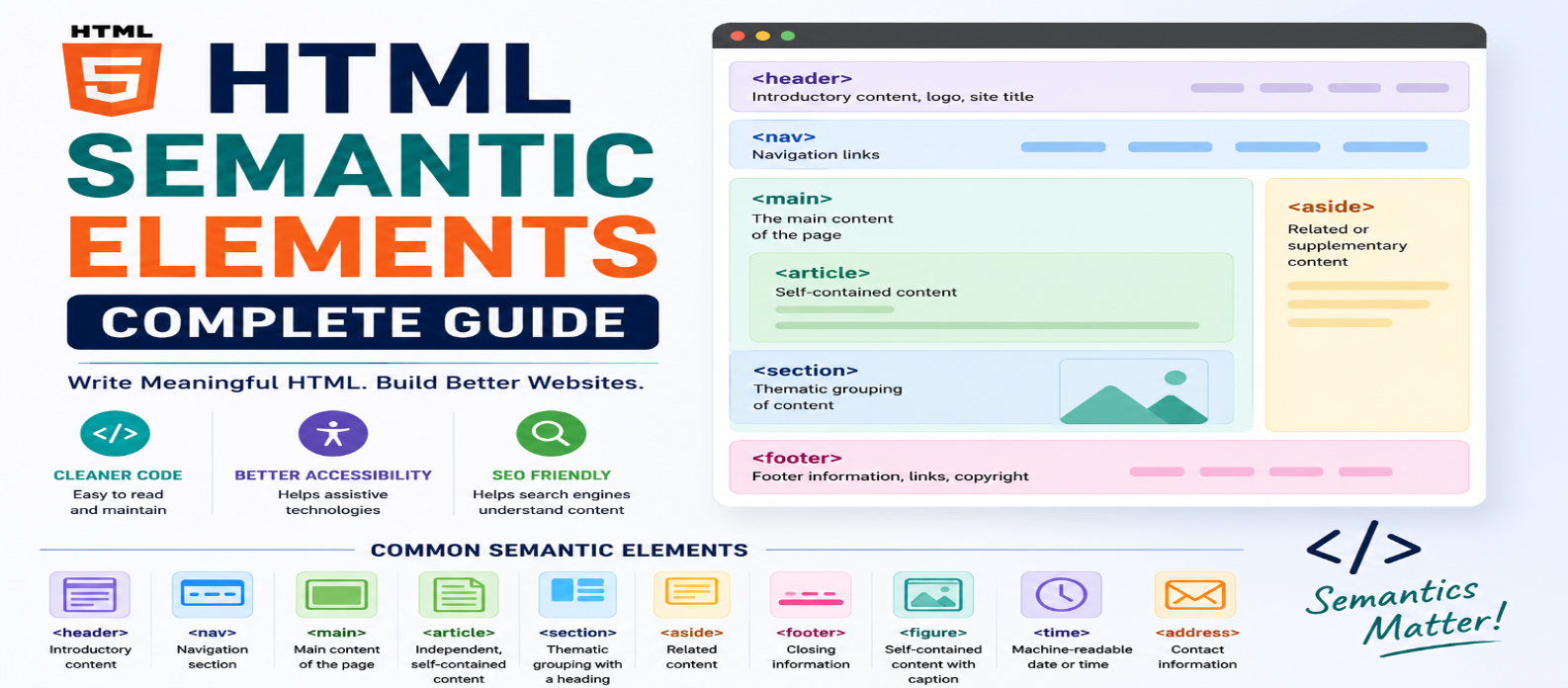
"Learn HTML semantic elements with practical examples covering header, nav, main, article, section, aside, footer, figure, time, accessibility, SEO, and proper semantic page structure."
HTML Semantic Elements: Complete Guide for Beginners in 2026
A webpage can be built almost entirely with <div> elements and still appear correct in a browser. But visually correct code isn't always meaningful code.
HTML provides semantic elements that describe the purpose of content rather than merely creating generic containers.
Elements such as <header>, <nav>, <main>, <article>, <section>, and <footer> help give a document understandable structure. This can improve maintainability and, when used correctly, provide useful meaning for browsers, search engines, and assistive technologies.
What Are Semantic HTML Elements?
A semantic element communicates what its content represents.
Compare:
<div class="navigation">
  ...
</div>
with:
<nav>
  ...
</nav>
Both can be styled to look identical.
But <nav> communicates that the enclosed content represents a significant navigation section.
That's the core idea:
Non-semantic element → primarily a generic container
Semantic element → communicates meaning or purpose
This doesn't mean <div> and <span> are bad. They're useful when no more appropriate semantic element exists.
Why Semantic HTML Matters
Semantic HTML can improve several areas of a website.
Clearer Code
Consider:
<header>...</header>
<main>...</main>
<footer>...</footer>
A developer can understand the basic structure quickly without relying entirely on class names.
Accessibility
Certain semantic elements provide useful structural information and landmarks that assistive technologies can use for navigation.
Search Understanding
Meaningful HTML can help machines understand the organization and purpose of page content.
Semantic HTML isn't an SEO trick or automatic ranking boost. It's part of building well-structured, understandable webpages.
Maintainability
Code that communicates intent is generally easier to revisit and modify.
<header>: Introductory Content
The <header> element represents introductory or navigational content for its nearest relevant sectioning context or page.
For example:
<header>
  <h1>Web Development Guide</h1>
  <p>Learn modern frontend development.</p>
</header>
A page can contain more than one <header>.
For example, an individual <article> may have its own header:
<article>
  <header>
    <h2>Understanding CSS Grid</h2>
    <p>Updated August 2026</p>
  </header>

  ...
</article>
So <header> doesn't simply mean "the top of the entire website."
<nav>: Navigation Links
Use <nav> for a section containing major navigation links.
<nav aria-label="Primary">
  <a href="/">Home</a>
  <a href="/tools">Tools</a>
  <a href="/blog">Blog</a>
</nav>
Not every collection of links needs <nav>.
For example, a paragraph containing one or two related links isn't automatically a navigation region.
Reserve <nav> for meaningful navigation groups.
<main>: The Page's Main Content
<main> identifies the dominant content of the document body.
<main>
  <h1>Learn JavaScript</h1>
  <p>...</p>
</main>
Repeated site-wide content such as the primary navigation, common sidebar, or footer generally doesn't belong inside <main> unless it's part of that page's unique main content.
For a normal document, you generally want one visible main content region.
<article>: Self-Contained Content
Use <article> when the content represents a relatively self-contained composition.
Common examples include:
- Blog posts
- News articles
- Forum posts
- User comments
- Product reviews
Example:
<article>
  <h2>CSS Flexbox Guide</h2>

  <p>
    Learn how Flexbox simplifies
    one-dimensional layouts.
  </p>
</article>
A useful question is:
Would this content still make sense if it were reused or distributed independently?
If yes, <article> may be appropriate.
<section>: Thematic Grouping
<section> represents a thematic grouping of content, typically with a heading.
<section>
  <h2>Performance Tips</h2>

  <p>
    Optimize images and reduce
    unnecessary resources.
  </p>
</section>
Don't replace every <div> with <section>.
If you only need a container for styling or layout and it has no meaningful thematic role, a <div> may be the better choice.
<aside>: Related but Secondary Content
<aside> is useful for content that is related to the surrounding content but somewhat separate from its main flow.
Example:
<aside>
  <h2>Related Topics</h2>
  <ul>
    <li>HTML Forms</li>
    <li>HTML Accessibility</li>
  </ul>
</aside>
Possible uses include:
Related Links → Sidebars → Callouts → Supplementary Information
The exact meaning depends on where the <aside> appears.
<footer>: Closing Information
<footer> represents footer information for its nearest relevant sectioning context or page.
A site-wide footer might contain:
<footer>
<p>© 2026 Example Site</p>
</footer>An <article> can also have its own footer:
<article>
  <h2>HTML Basics</h2>
  <p>...</p>

  <footer>
    <p>Written by Alex</p>
  </footer>
</article>
Like <header>, <footer> isn't restricted to one occurrence per webpage.
<figure> and <figcaption>
Use <figure> for self-contained content that can have an optional caption.
For example:
<figure>
  <img
    src="layout-example.png"
    alt="Three-column webpage layout"
  >

  <figcaption>
    Example of a three-column layout.
  </figcaption>
</figure>
Figures aren't limited to photographs. They can represent diagrams, illustrations, code examples, charts, or other self-contained referenced content where the semantics fit.
<time>: Machine-Readable Dates and Times
The <time> element can represent a date or time.
<time datetime="2026-08-29">
  August 29, 2026
</time>
The visible text is written for readers, while the datetime attribute provides a machine-readable value.
This can be useful for article dates, event times, and other temporal information.
<address>: Contact Information
A common misconception is that <address> should contain any physical address appearing on a webpage.
Its semantic purpose is more specific: it represents contact information for a person, organization, or the nearest relevant article/body context.
For example:
<address>
  Contact the editorial team at
  editor@example.com
</address>
Use it based on meaning, not simply because the content contains a street address.
Semantic HTML Doesn't Control Appearance
A semantic element doesn't determine how beautiful your website looks.
You can style it normally:
article {
  max-width: 70ch;
  margin-inline: auto;
}

section {
  margin-block: 3rem;
}
HTML handles meaning and structure.
CSS handles presentation.
Keeping these responsibilities clear makes frontend development easier to reason about.
A Semantic Blog Layout Example
A simplified blog page might look like:
<body>

  <header>
    <p>WebTools Corner</p>

    <nav aria-label="Primary">
      ...
    </nav>
  </header>

  <main>
    <article>
      <header>
        <h1>HTML Semantic Elements</h1>
        <time datetime="2026-08-29">
          August 29, 2026
        </time>
      </header>

      <section>
        <h2>What Is Semantic HTML?</h2>
        ...
      </section>

      <section>
        <h2>Why Does It Matter?</h2>
        ...
      </section>
    </article>
  </main>

  <footer>
    ...
  </footer>

</body>
Even without CSS, the purpose of each major region is understandable.
Semantic HTML and Accessibility
Semantic HTML can provide useful information to assistive technologies without requiring developers to recreate every meaning manually.
For example:
<button>Save</button>is usually preferable to building a fake button from a generic element:
<div class="button">Save</div>A native <button> already carries important semantics and built-in interaction behavior.
A useful rule is:
Use the correct native HTML element whenever one already matches the purpose.
Then add ARIA only where it's actually necessary rather than replacing good HTML semantics unnecessarily.
Semantic HTML and SEO
Semantic elements can help organize content clearly, but avoid treating them as magic SEO tags.
Simply changing:
<div>to:
<section>doesn't automatically make low-quality content rank better.
For search-friendly pages, semantic HTML should work alongside:
Useful Content + Clear Headings + Descriptive Links + Accessible Images + Logical Structure + Good Performance
Structure supports the content; it doesn't replace content quality.
Common Semantic HTML Mistakes
Using <section> for Every Container
Use <div> when the element exists purely for styling or layout.
Putting Everything Inside <article>
Not every card or content box is independently meaningful content.
Using <nav> for Every Link
Reserve it for meaningful navigation sections.
Choosing Elements by Appearance
Choose HTML based on meaning, then use CSS to control appearance.
Recreating Native Elements With <div>
Before building a custom control, check whether HTML already provides the element you need.
A Practical Rule for Choosing Elements
When writing HTML, ask:
"What is this content?"
If the answer is:
"Navigation" → <nav>
"Main content" → <main>
"Independent article" → <article>
"Thematic section" → <section>
"Related information" → <aside>
"Heading" → <h1>–<h6>
"Button" → <button>
If no semantic element accurately describes it, using <div> is perfectly reasonable.
Conclusion
Semantic HTML is about giving webpage content meaningful structure, not replacing every <div> with a newer-looking tag.
Elements such as <header>, <nav>, <main>, <article>, <section>, <aside>, and <footer> make the purpose of major page regions clearer.
The most important principle is simple:
Choose HTML elements according to what the content means—not according to how you want it to look.
Combine meaningful HTML with well-organized headings, accessible native controls, useful content, and CSS for presentation. The result is code that's easier for developers, browsers, search systems, and users to understand.
Get a Free Access To 200+ Free Tools:
|
Home Page |
|
|
Calculator Tools |
|
|
Text & Converter Tools |
|
|
PDF & Image Tools |
|
|
Games & Developer Tools |
|
|
Resume Builder |