
How to Optimize WordPress Website Speed: Complete Guide for 2026
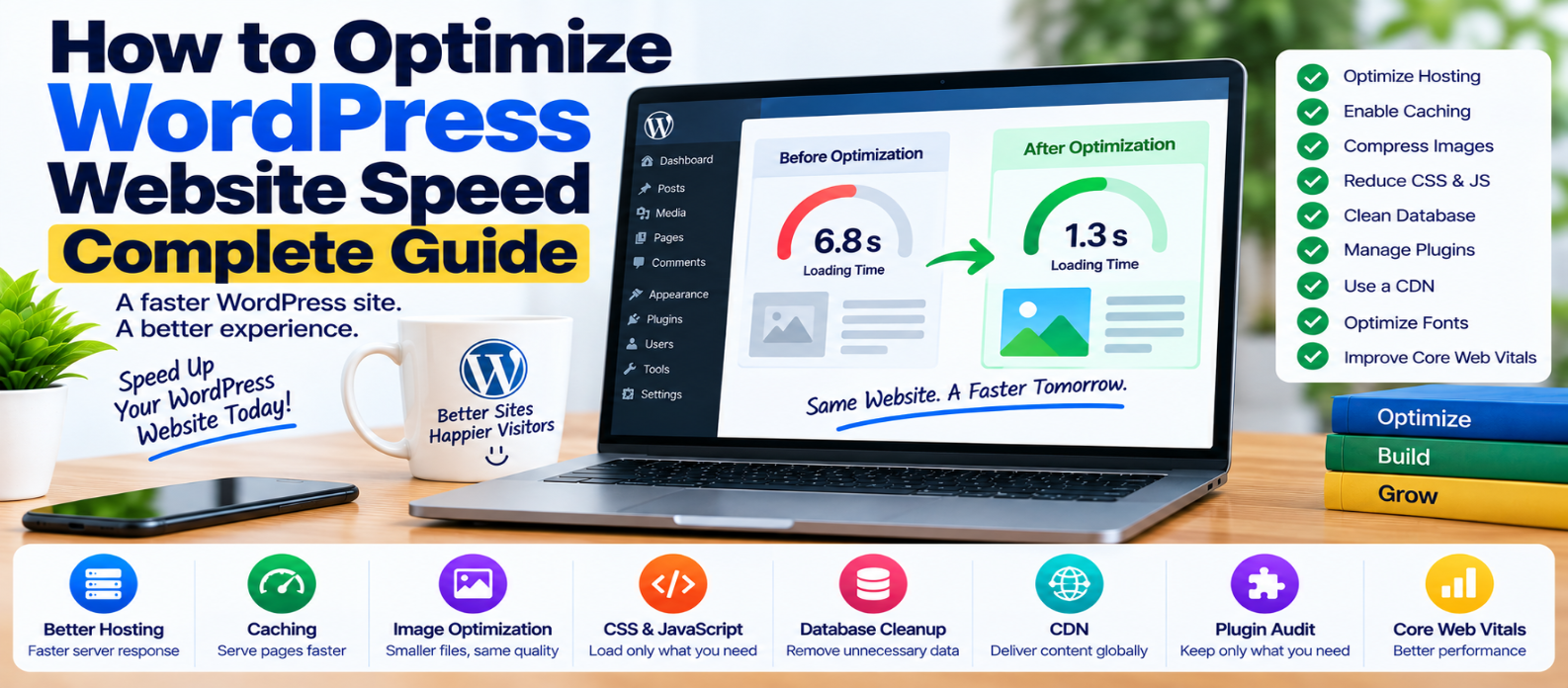
"Learn how to optimize WordPress website speed by improving hosting, caching, themes, plugins, images, CSS, JavaScript, fonts, database performance, cron tasks, CDNs and Core Web Vitals."
How to Optimize WordPress Website Speed: Complete Guide
A WordPress website doesn't become slow simply because it uses WordPress.
Performance problems usually come from the environment built around it: slow hosting, a heavy theme, too many plugins, oversized images, uncached pages, inefficient database queries, third-party scripts, or unnecessary CSS and JavaScript.
The solution isn't to install every "speed optimization" plugin you find.
A better approach is:
Measure → Find what's slow → Fix the bottleneck → Test again.
Here's how to optimize WordPress speed systematically.
1. Measure Your WordPress Website First
Before changing anything, test several important page types:
Homepage
Blog Post
Category Page
Landing Page
Product Page
Don't judge the entire website from one homepage test.
Pay attention to:
- Server response time
- Largest Contentful Paint (LCP)
- Interaction to Next Paint (INP)
- Cumulative Layout Shift (CLS)
- Large images
- JavaScript execution
- Render-blocking resources
Save your initial results so you can compare them later.
2. Start With Good Hosting
WordPress dynamically generates many pages using PHP, a database, themes, and plugins.
A simplified request looks like:
Visitor
   ↓
Web Server
   ↓
WordPress / PHP
   ↓
Database
   ↓
Generated HTML
   ↓
Visitor
If the server is overloaded or poorly configured, frontend optimizations can only do so much.
When evaluating hosting, consider:
- Available CPU and memory
- PHP performance
- Database performance
- Server-level caching
- Storage speed
- Geographic location
- Traffic capacity
You don't automatically need expensive hosting, but your infrastructure should match your website's workload.
3. Keep WordPress Updated
Keep WordPress core, themes, and plugins reasonably current.
Updates can include:
- Performance improvements
- Bug fixes
- Security patches
- Compatibility improvements
Before major updates, maintain reliable backups and test important functionality where appropriate.
Also use a supported PHP version that is compatible with your WordPress installation, theme, and plugins.
4. Use a Lightweight Theme
A visually impressive theme can still be unnecessarily heavy.
Some themes load:
Multiple Stylesheets
Large JavaScript Bundles
Sliders
Animations
Icon Libraries
Custom Fonts
Page Builder Features
even when a page uses only a small portion of them.
Choose a theme based on what your website actually needs.
A lightweight foundation is usually easier to optimize than a theme carrying dozens of unused features.
5. Audit Your Plugins
The number of plugins alone doesn't determine performance.
One inefficient plugin can create more problems than several well-designed ones.
Review every plugin and ask:
Do I still need it?
Does it load resources on pages where it isn't used?
Does it make expensive database queries?
Does another plugin already provide the same feature?
Remove plugins that no longer provide meaningful value.
Don't simply deactivate abandoned plugins indefinitely—remove unnecessary software when you're confident it isn't needed.
6. Enable Page Caching
Without page caching, WordPress may need to execute PHP and query the database repeatedly to generate similar pages.
Page caching can store generated output:
Without Cache:

Request
  ↓
PHP
  ↓
Database
  ↓
Generate Page


With Cache:

Request
  ↓
Cached Page
  ↓
Response
This can significantly reduce server work for cacheable pages.
However, dynamic areas such as shopping carts, account pages, or personalized content require appropriate caching rules.
7. Use Browser Caching
Static resources such as:
- CSS
- JavaScript
- Images
- Fonts
can often be cached in visitors' browsers.
When a visitor moves to another page, unchanged resources may be reused instead of downloaded again.
Configure caching intentionally and use versioned resource URLs when appropriate so updated files can replace older cached versions.
8. Optimize WordPress Images
Uploading a huge image and letting WordPress or CSS visually shrink it doesn't necessarily produce efficient delivery.
Before or during upload:
- Resize appropriately
- Compress images
- Use suitable formats
- Generate useful responsive sizes
Modern formats such as WebP or AVIF can be effective where your workflow supports them.
WordPress can generate multiple image sizes, and responsive image markup can help browsers select suitable versions.
9. Lazy-Load Below-the-Fold Media
Images and iframes far below the visible area don't always need immediate loading.
Native lazy loading can reduce initial resource competition.
But don't blindly lazy-load the main hero image.
If an above-the-fold image is your LCP element, delaying it can make performance worse.
Think:
Hero / LCP Image → Load promptly

Offscreen Images → Lazy-load when appropriate
10. Reduce Unnecessary CSS and JavaScript
Themes and plugins may load resources across the entire site even when they're needed only on specific pages.
For example:
Contact Form CSS → Loaded on every page
Slider JS        → Loaded without a slider
Shop Scripts     → Loaded outside the shop
Audit what each page actually downloads.
Possible improvements include:
- Removing unused CSS
- Minifying production assets
- Deferring suitable JavaScript
- Delaying nonessential scripts
- Loading feature-specific assets only where needed
Test functionality after changing script-loading behavior. Incorrect deferral can break menus, forms, sliders, or other interactive features.
11. Optimize the Database
Over time, a WordPress database may accumulate unnecessary data such as:
- Old revisions
- Expired temporary data
- Plugin leftovers
- Spam or deleted comments
- Unused metadata
Cleaning genuinely unnecessary data can help maintain a healthier database.
More importantly, investigate slow queries if database activity is causing poor server response.
Always create a reliable backup before making database changes.
12. Consider Persistent Object Caching
WordPress sometimes performs repeated database operations while generating pages.
Persistent object caching can allow frequently used application data to be reused between requests.
Conceptually:
WordPress needs data
       ↓
Object Cache?
   ↙       ↘
Found     Missing
  ↓          ↓
Use it    Database
This can be valuable for dynamic or database-heavy websites, but its benefit depends on the workload and hosting configuration.
It isn't a universal replacement for page caching.
13. Control WordPress Cron Work
WordPress uses scheduled tasks for activities such as publishing scheduled posts, maintenance, and plugin jobs.
A poorly behaving plugin may create frequent or expensive scheduled tasks.
If your website experiences unexplained server load, inspect scheduled activity.
High-traffic or complex sites may benefit from configuring scheduled processing more deliberately at the server level.
14. Optimize Web Fonts
A WordPress theme may load more fonts than you realize.
Check for:
Multiple Families
Multiple Weights
Italic Variants
Icon Fonts
Plugin Fonts
Load only what your design actually uses.
Use efficient font formats, sensible font-display behavior, and preload only genuinely critical fonts.
15. Reduce Third-Party Scripts
WordPress makes it easy to add external services through plugins and snippets.
Over time, you may accumulate:
- Analytics
- Advertising
- Chat widgets
- Social embeds
- Tracking pixels
- Marketing tools
- Video players
Each can add network and processing costs.
Remove services you no longer use and delay nonessential features when appropriate.
16. Use a CDN When It Makes Sense
A CDN can cache static resources closer to geographically distributed visitors.
Visitor
   ↓
Nearby CDN Location
   ↓
Cached Images / CSS / JS
This can reduce network latency and origin traffic.
A CDN won't fix a slow database query, bloated plugin, or enormous JavaScript bundle. Treat it as one part of the delivery system, not a universal speed fix.
17. Don't Install Multiple Overlapping Optimization Plugins
More optimization plugins don't automatically create more speed.
Two plugins trying to perform the same caching, minification, lazy loading, or script optimization can create conflicts and unnecessary complexity.
Prefer a clear setup where you know:
Who handles page caching?
Who handles image optimization?
Who handles CDN delivery?
Who handles asset optimization?
Avoid duplicating the same job.
What Should You Fix First?
A practical priority order is:
1. Measure performance
       ↓
2. Fix slow hosting/server response
       ↓
3. Enable appropriate caching
       ↓
4. Optimize large images
       ↓
5. Audit theme and plugins
       ↓
6. Reduce CSS and JavaScript
       ↓
7. Optimize fonts and third parties
       ↓
8. Investigate database/cron issues
       ↓
9. Measure again
Your actual order should follow the bottlenecks you discover.
Common WordPress Speed Mistakes
Avoid:
Installing a caching plugin and assuming optimization is finished.
Using several plugins that perform the same optimization.
Lazy-loading the LCP image.
Deleting database records without backups.
Blaming WordPress when one plugin is creating the problem.
Minifying scripts without testing functionality.
Choosing hosting only by advertised storage space.
Testing only on a powerful desktop connection.
Chasing a perfect score instead of improving real user experience.
Conclusion
WordPress speed optimization works best when you treat the website as a complete system:
Hosting → WordPress → Theme → Plugins → Database → Cache → CSS/JavaScript → Images → Fonts → Third Parties
Start with measurement and fix the largest bottleneck first.
Use suitable hosting, keep the software maintained, choose a lightweight theme, remove unnecessary plugins, configure caching, optimize images, control CSS and JavaScript, and investigate database or scheduled-task problems when evidence points there.
Most importantly:
Don't add complexity in the name of performance.
A well-optimized WordPress website is usually one where every theme feature, plugin, script, image, and server process has a clear reason to exist.
Get a Free Access To 200+ Free Tools:
|
Home Page |
|
|
Calculator Tools |
|
|
Text & Converter Tools |
|
|
PDF & Image Tools |
|
|
Games & Developer Tools |
|
|
Resume Builder |