
How to Fix Slow Website Problems: Complete Troubleshooting Guide
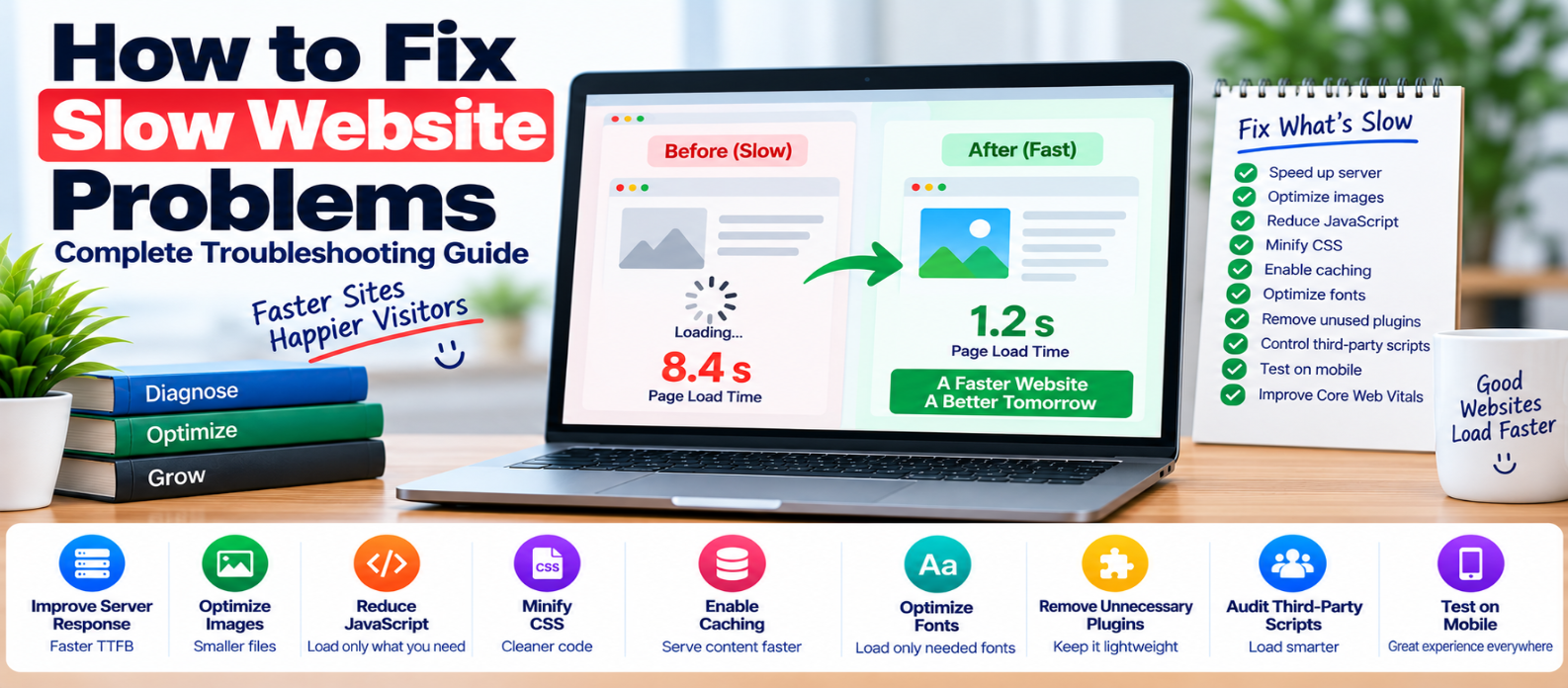
"Learn how to diagnose and fix slow website problems caused by server response, oversized images, LCP, JavaScript, CSS, layout shifts, fonts, caching, third-party scripts and backend bottlenecks."
How to Fix Slow Website Problems: Complete Troubleshooting Guide
A slow website doesn't always have one obvious cause.
The server might take too long to respond. A hero image could be several megabytes. JavaScript may freeze the browser. A third-party widget might delay rendering. Or the homepage may be fast while product and search pages struggle because of database work.
That's why the first step isn't installing another optimization tool.
It's identifying where the delay actually happens.
First: What Does "Slow" Mean?
Different symptoms point toward different problems.
| Symptom | Possible Area to Investigate |
|---|---|
| Blank page before anything appears | Server, redirects, blocking resources |
| Main content appears very late | LCP resource, images, fonts |
| Page loads but feels unresponsive | JavaScript, long tasks, event handlers |
| Images appear slowly | File size, dimensions, delivery |
| Layout jumps while loading | Images, ads, fonts, dynamic content |
| Only dynamic pages are slow | Backend, database, APIs |
| Mobile is much slower | JavaScript, images, CPU/network demands |
Treat these as investigation clues rather than automatic diagnoses.
1. Test More Than Your Homepage
A homepage test doesn't tell you how the entire website performs.
Check representative pages such as:
Homepage
Article
Product or Service Page
Category Page
Search Page
Contact or Checkout Page
Also test on mobile.
If every page is slow, investigate shared infrastructure and site-wide resources.
If only one template is slow, concentrate on what makes that template different.
2. Fix a Slow Initial Server Response
Suppose the browser requests a page and waits too long before receiving the HTML.
The problem may be happening before images and frontend scripts even matter.
Investigate:
- Server capacity
- Application processing
- Database queries
- Cache configuration
- Backend API calls
- Excessive redirects
For cacheable pages, appropriate server or page caching can avoid regenerating the same response for every request.
Think of it this way:
Request
   ↓
Slow Backend
   ↓
Late HTML
   ↓
Late CSS / Images / JavaScript
   ↓
Late Page
When the beginning is delayed, everything after it starts late too.
3. Fix a Page With Huge Images
Oversized images can make an otherwise simple page unnecessarily heavy.
Check whether an image's source dimensions are far larger than its rendered size.
For example:
Uploaded: 4000 × 3000
Displayed: 800 × 600
Better image delivery can include:
- Correct dimensions
- Compression
- WebP or AVIF where appropriate
- Responsive image variants
- Lazy loading for offscreen images
Don't automatically lazy-load the main above-the-fold image. If it becomes the Largest Contentful Paint element, delaying it can hurt loading performance.
4. Fix a Late Hero or Main Content Element
If most of the page appears but the largest visible element arrives late, investigate Largest Contentful Paint (LCP).
A good LCP is 2.5 seconds or less.
If the LCP element is an image:
- Reduce its file size
- Make it discoverable early
- Avoid unnecessary lazy loading
- Use appropriate responsive sizing
- Avoid making it compete with too many high-priority resources
If the LCP element is text, inspect fonts, CSS, server response, and rendering dependencies.
Don't optimize random files before identifying the actual LCP element.
5. Fix a Website That Freezes After Loading
Sometimes a page appears quickly but buttons, menus, or forms respond slowly.
That often points toward browser processing rather than download speed.
Heavy JavaScript may occupy the main thread with:
Parsing
Calculations
DOM Updates
Event Handlers
Third-Party Code
Audit large bundles and long-running tasks.
Remove unused JavaScript, split optional functionality, simplify expensive handlers, and load features only when needed.
For example, a complex editor needed only after clicking Edit doesn't necessarily need to be part of the initial page bundle.
6. Fix Layout Jumping
If text, buttons, or images suddenly move while the page loads, investigate Cumulative Layout Shift (CLS).
A good CLS is 0.1 or less.
Typical causes include:
- Images without dimensions
- Ads without reserved space
- Late banners
- Embeds that expand
- Font changes
- Dynamically inserted content
Reserve space before content arrives whenever its dimensions can be predicted.
For images:
<img
  src="product.webp"
  width="800"
  height="600"
  alt="Product example">
The browser can establish the aspect ratio before the image finishes downloading.
7. Fix Excessive CSS and JavaScript
Websites often accumulate resources over time.
A page may download:
Old component CSS
Unused framework styles
Slider JavaScript
Form scripts
Animation libraries
Duplicate utilities
even when it doesn't use those features.
Audit what each page actually requires.
Then consider:
- Removing unused code
- Minifying production files
- Splitting large bundles
- Deferring suitable scripts
- Loading feature-specific assets only where needed
Always retest functionality after changing resource loading.
8. Fix Slow Third-Party Features
A website may be well optimized internally but still depend on heavy external features.
Examples include:
- Advertising
- Analytics
- Chat widgets
- Social embeds
- Video players
- Marketing scripts
Ask three questions:
Is it necessary?
      ↓
Does it need to load immediately?
      ↓
Can it load after interaction?
Remove abandoned integrations and delay noncritical features where appropriate.
9. Fix Font-Related Delays
Loading multiple font families and many weights can create extra network and rendering work.
If your design uses only regular and bold, downloading numerous unused variants provides little benefit.
Review:
- Font families
- Weights
- Italic variants
- Icon fonts
- Preloaded fonts
Use efficient font formats and sensible font-display behavior.
Preload only resources that genuinely deserve early priority.
10. Fix Repeat Visits That Still Download Everything
Static resources shouldn't necessarily be downloaded from scratch on every visit.
Configure suitable browser caching for:
- CSS
- JavaScript
- Images
- Fonts
Versioned filenames allow long-lived assets to change safely:
app.8f23a.js
styles.47c91.css
When the file changes, its URL changes.
Also use HTTP compression such as Brotli or gzip where appropriate for text resources.
11. Fix Pages That Become Slow Under Traffic
A website that performs well with one visitor may struggle during busy periods.
That can indicate:
- CPU or memory limits
- Database contention
- Expensive uncached requests
- External API bottlenecks
- Poor scaling
- Resource exhaustion
Caching can reduce repeated work, but high-traffic problems should be diagnosed at the infrastructure and application level rather than hidden behind frontend tweaks.
12. Avoid the "Fix Everything" Approach
Changing twenty settings simultaneously makes troubleshooting harder.
Instead:
Reproduce Problem
      ↓
Measure
      ↓
Identify Bottleneck
      ↓
Make One Meaningful Fix
      ↓
Retest
      ↓
Compare
If performance improves, you know what mattered.
If it gets worse, rollback is much easier.
Quick Slow Website Troubleshooting Checklist
Before finishing your investigation, check:
-
Multiple page types tested
-
Mobile performance tested
-
Server response investigated
-
LCP element identified
-
Oversized images fixed
-
JavaScript long tasks reviewed
-
Unused CSS and JavaScript reduced
-
Layout shifts investigated
-
Fonts audited
-
Caching configured appropriately
-
Compression enabled where useful
-
Third-party scripts reviewed
-
Backend/database performance checked
-
Changes retested individually
Conclusion
The fastest way to fix a slow website isn't to apply every optimization technique you know.
It's to find the actual bottleneck.
If the server is slow, investigate the backend. If the hero appears late, inspect the LCP resource. If interactions freeze, investigate JavaScript. If the page jumps, find the source of layout instability.
Use a simple troubleshooting cycle:
Observe → Measure → Diagnose → Fix → Verify
That approach doesn't just produce a better performance score. It helps you solve the problem your visitors are actually experiencing.
Get a Free Access To 200+ Free Tools:
|
Home Page |
|
|
Calculator Tools |
|
|
Text & Converter Tools |
|
|
PDF & Image Tools |
|
|
Games & Developer Tools |
|
|
Resume Builder |